Checkmk Site Management
The Included Playbook cmk_server_mngmnt.yml makes use of the following functions:
- Installation of Checkmk Versions
- Creation of Checkmk Sites
- Updates of Checkmk Sites
How It works
Configure your Checkmk Target Version, and your Checkmk Sites inside the Syncer. Then run the Playbook. The Configuration can be Found in Modules → Checkmk Server
Now the Details:
CMK Server Settings
Modules → Checkmk Server → Checkmk Site Updates and Creation
Here you set the Target Version you want to use. The needed information can be found on the Checkmk Download Page:
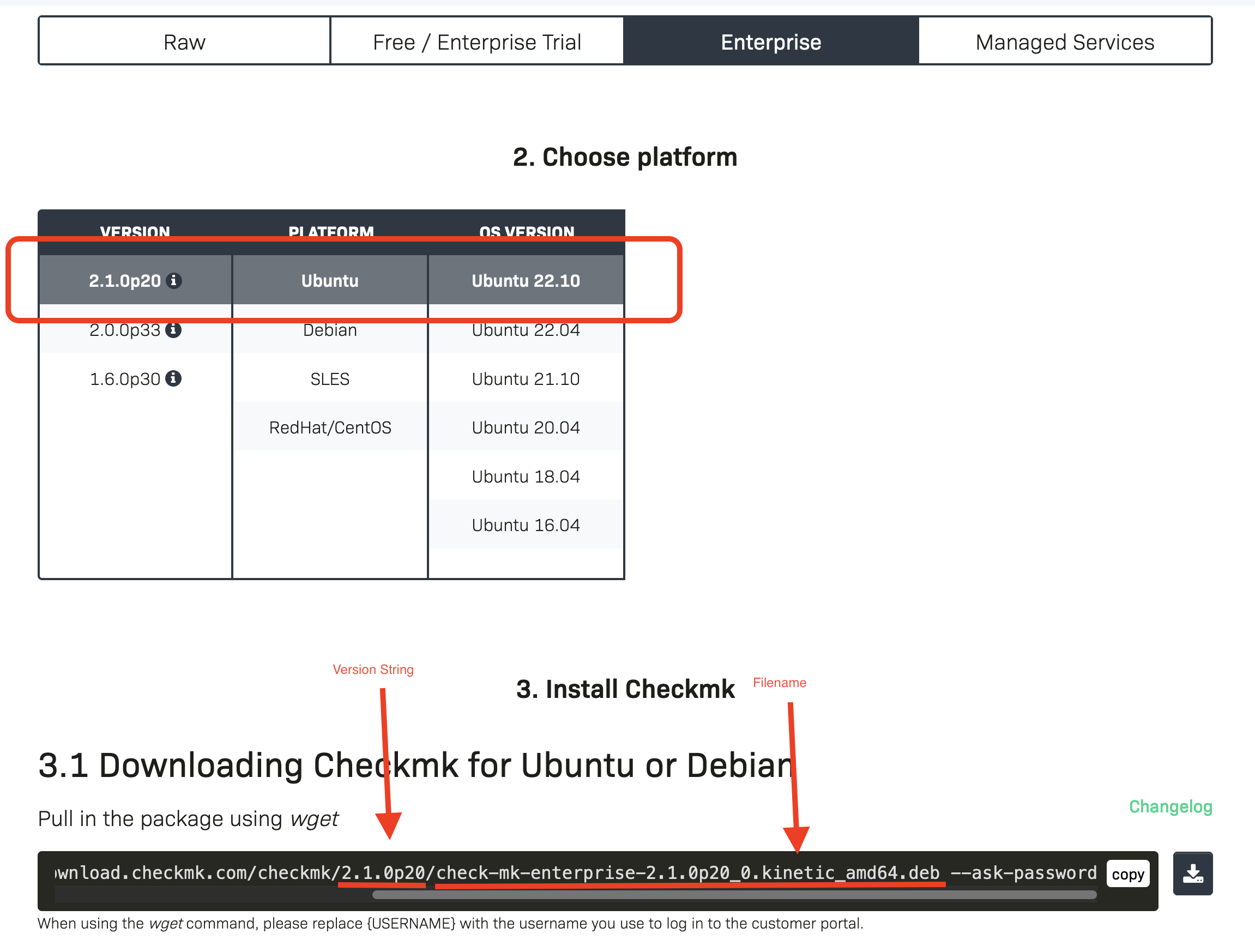
If you place the Checkmk Installation Package in the staging directory (see Installation Staging Path below, /tmp by default) it will be used. The package can be uploaded through Files in the web interface, set the staging path to that directory then, see Fileadmin. If not, the System will try to download it, using the supplied credentials. Then it's transferred to your remote server. That means these servers do not need an internet connection.
Staging outside /tmp
The installer is staged on the controller (the Syncer host). When the web UI runs under mod_wsgi the worker gets a private /tmp (PrivateTmp=yes) that later steps can't see, and it is wiped on restart. If a run fails because the copied file "can't be found on the Ansible Controller", set Installation Staging Path to a directory outside /tmp (e.g. /var/cmdbsyncer/files) that the web user can read and write.
The log of every run names where the file is looked for: the full path on the controller and its host name, with Found or Not found, downloading to. A relative staging path is resolved against the working directory of the run, which differs between a pip installation, the container and the web interface, so prefer an absolute path.
When you create a rule, you find the following options:
| Option | Description |
|---|---|
| Name | Name of config set |
| Enabled | Disabled settings take all their sites out of the inventory, the playbook does not touch them. Can also be switched in the list |
| Server User | User for Ansible to connect to the Server. Sudo needs to be possibe |
| Server SSH Private Key | Optional private key for the login as Server User, pasted as a whole (-----BEGIN ... PRIVATE KEY-----). Stored encrypted and never shown again; leave the field empty to keep the stored key, or tick Remove stored SSH Private Key. A key protected by a passphrase is refused, the run has nobody to ask for it. Without a key, the SSH setup of the Syncer host applies |
| Ask for the SSH password on Run | Run Playbook asks for the password of the Server User, for that run only and never stored; needs sshpass on the Syncer host. The action for several entries and the weekly schedule leave these settings out, nobody is there to ask |
| CMK Version | Version's String like 2.1.0p19. Can also be changed in the list |
| CMK Edition | The edition as omd names it. Up to 2.4: Enterprise, RAW, Cloud or MSP. From 2.5 on: Community, Pro, Ultimate or Ultimate with Multi-Tenancy |
| CMK Version Filename | Filename like found on the cmk download server, example: check-mk-enterprise-{{CMK_VERSION}}_0.bullseye_amd64.deb |
| Installation Staging Path | Controller directory the downloaded installer is staged in. Empty = /tmp. Set a path outside /tmp when the executing user can't reliably use /tmp (permission issues, or the private /tmp under mod_wsgi). |
| Inital Password | This password will be set for new sites |
| Subscription Username/ Password | Your Checkmk Subscription Account |
| Download Proxy | Optional proxy for the download from checkmk.com, e.g. http://proxy.example.com:3128. Credentials can be referenced as {{ACCOUNT:name:password}}. Empty = the proxy settings of the Ansible controller's environment |
Note: For the CMK Version Filename, you can use the Placeholders {{CMK_VERSION}} and {{CMK_EDITION}}
Fill in from checkmk.com
Below the filename the form offers Fill in from checkmk.com. A click loads
the current version of every Checkmk major release and its installation files
from checkmk.com. Pick the version and the platform (Ubuntu, Debian, RHEL,
SLES or the Checkmk Appliance) and Apply fills in version, edition and
filename. The filename keeps {{CMK_VERSION}} in place of the version, so it
stays valid when only the version is changed later. Checkmk 2.5 renamed its
editions; applying a version switches the edition to the name of its release.
The list is only loaded on that click, by the Syncer, through the Download Proxy of the saved settings. Without internet access the form just says so, and the examples below the button still show the format.
Update the version in the list
The Cmk Version column of the list can be edited with a click on the
version. Check checkmk.com for updates above the list looks up the
newest patch release of the major release each entry uses, for example
2.5.0p21 for an entry on 2.5.0p19, and offers it as Set 2.5.0p21;
one click saves it. Entries already on the newest patch release show Up to
date. As in the form, the Syncer loads the list from checkmk.com, through
the Download Proxy of each entry. Only the version changes, so a filename
that does not use {{CMK_VERSION}} has to be adapted in the form.
CMK Sever Sites
Modules → Checkmk Server → Site Settings
As Second you add all your Sites here. Every Entry references to a Server Setting entry.
Make sure that the operating system will match to the Server Settings.
| Option | Description |
|---|---|
| name | Site Name, once per server |
| Server Address | Address of Server for SSH (without protocoll) |
| Settings Master | Select the CMK Server Settings Entry |
A server can run one site per CMK Server Settings entry. To run a
production and a test site on the same server, create two settings
entries, for example Prod and Test, and add the server once with each.
The same site name may be used on several servers, but only once per
server. Each settings entry gets its own inventory, so a run for Test
only sees the test sites.
Custom Ansible Variables
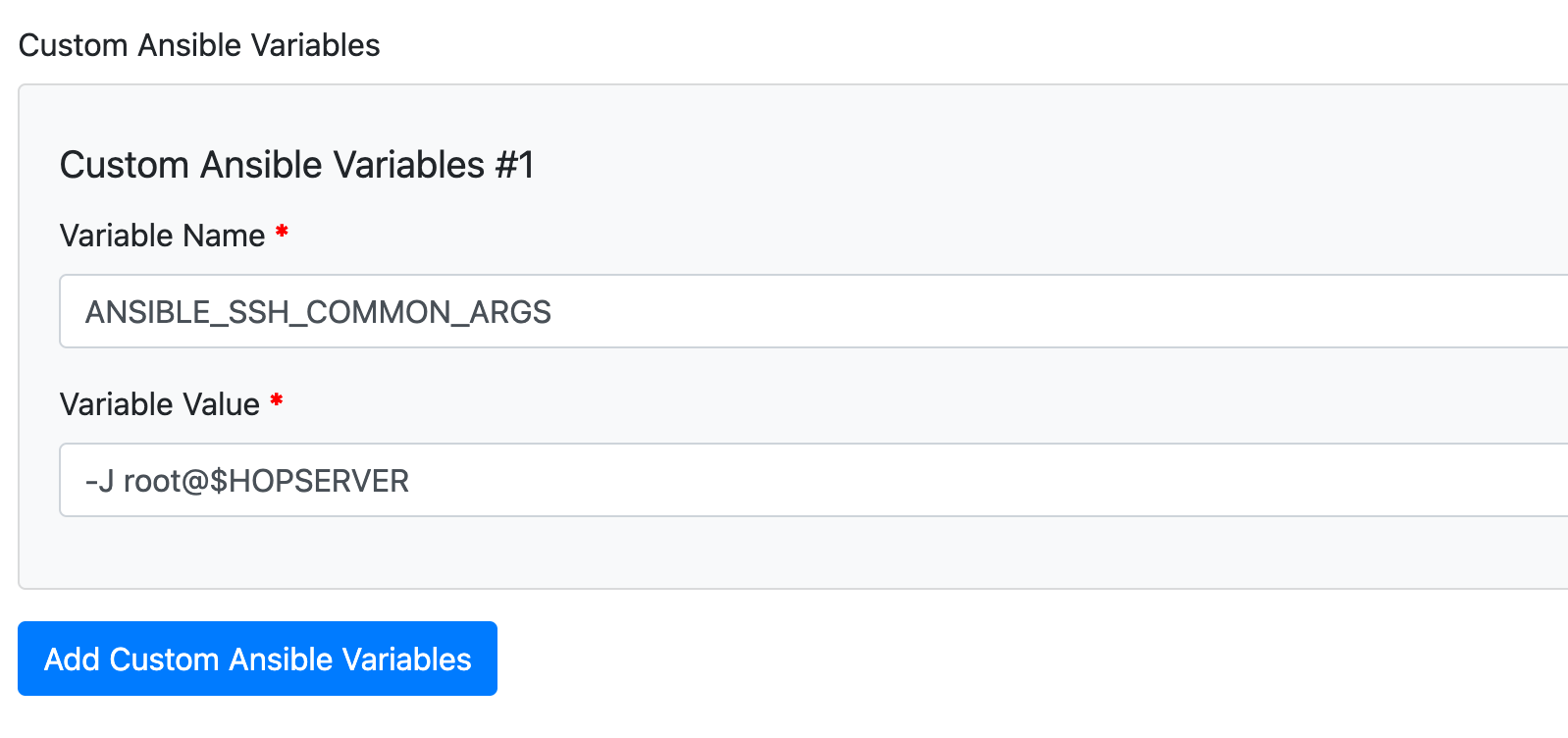
For each Site, you can set Ansible Custom Variables if you need special Settings to reach the site. That could be every Variable, supported by Ansible
Checkmk Appliance
A standalone Checkmk Appliance is updated with its own playbook,
Checkmk: Update Checkmk Appliance (cmk_appliance_mngmt.yml). It uses
the same CMK Server Settings and Site Settings, but is started from
Modules → Ansible → Run Playbook with the inventory provider
cmk_sites:<settings name>, not with the Run Playbook button of the
settings. It does what the web interface of the appliance does: it unpacks
the CMA package below /omd/versions, makes it the default version, runs its
post-install and updates the site.
What the appliance needs:
- Root access over SSH, switched on in the device settings of the
appliance. Set Server User to
root, ideally with a Server SSH Private Key. Checkmk does not intend this as an automation path, so test it on one appliance first. - A CMA package of a commercial edition for the platform of the appliance,
for example
check-mk-pro-{{CMK_VERSION}}-4-x86_64.cma. Fill in from checkmk.com offers it as platform Checkmk Appliance. The playbook checks the platform and the minimal firmware version of the package before it installs anything. - The site exists already. A new site is created in the web interface of the appliance, the playbook refuses to create one there.
A cluster of appliances and a server that is no appliance are refused.
Run the automation
With the settings done, you can run Ansible now.
From the web interface, click Run Playbook in the last column of an entry in Modules → Checkmk Server → Checkmk Site Updates and Creation. A dialog asks before the run. Tick Ask for passwords when the Server User needs them; with Ask for the SSH password on Run set in the settings, the dialog opens with it ticked and the SSH password is a must:
| Field | Description |
|---|---|
| SSH password | Login of the Server User. Empty: the SSH key of the settings or of the Syncer host. Needs sshpass there. |
| sudo password | For the steps that run as root. Empty: the SSH password, as ansible-playbook -k -K does. |
Both are used for this run only: they go into a file of the run that only the Syncer can read, never onto the command line, and are not stored. For several entries at once, select them and choose Run Manage OMD Server in the action menu. The playbook then only runs on the servers of the enabled sites that use the selected settings, and the page of the run opens with its log. Every selected settings entry gets a run of its own. Settings whose sites share a server are refused together, so two installations never run on the same server at once: start them one after another. Starting it needs the Ansible right in addition to the Checkmk right. Disabled settings show no button and are skipped in the action. With a Server SSH Private Key in the settings, these runs log in with it; the key is only written to a file for the duration of the run. A run on the command line uses the SSH setup of the user running it.
Weekly schedule
Each settings entry can update its sites on its own day, so production and test servers are updated separately. In the section Weekly Schedule of the form choose:
| Option | Description |
|---|---|
| Weekday | The day of the weekly run. No schedule = only by hand |
| Hour | The hour of the run on that day |
| Check for new version | Look up the newest patch release of the major release of CMK Version on checkmk.com and set it as CMK Version, as Check checkmk.com for updates does |
| Install and update the sites | Run Manage OMD Server, as the Run Playbook button does: installs CMK Version on the servers and updates the enabled sites of this entry to it |
| Only after success of | Optional: another settings entry, for example the test servers for production. This entry runs only if the weekly run of the other one succeeded within the last 7 days, and takes the version the other one ended with instead of looking up the newest one, so production gets exactly what was tested. Otherwise the run is skipped and logged as an error |
Weekday and hour are the trigger, the two options say what happens then.
The runs are done by the cron group Checkmk Server: Scheduled Updates,
interval Every 15 minute. The Syncer creates it with the first entry that
has a schedule and switches it off while no entry has one; it can be paused
under Cronjobs, but not deleted. Installations that had
schedules before get it with cmdbsyncer sys self_configure or the next
save of an entry. On each pass it runs the entries whose day
and hour have come and that did not run yet that day; an entry runs once a
week. If checkmk.com can't be reached, the next pass of that day tries again;
a day missed completely waits for the next week. With both options set the
playbook runs with the new version. Due entries run one after the other,
each waits for its playbook to end, so the cron group stays busy meanwhile.
Settings with Ask for the SSH password on Run still get the version check,
but the playbook does not run: the run is logged as failed, start it with
Run Playbook.
To try a weekly run without waiting for its day and hour, select the entries
in the list and use With selected → Run weekly run now: the next pass of
the cron group runs them, within a few minutes, exactly as on their day, with
the version check, Only after success of and the playbook. The result shows
in the Schedule column and in the log (source Checkmk Server), marked as
started on request. On the command line the run starts at once, with its
output:
cmdbsyncer checkmk run_weekly_now <settings name>
Entries another one depends on run first when both are due in the same pass. A dependency that leads back to the entry itself is refused, and an entry others depend on can't be deleted.
Every run writes to Settings → Log with source Checkmk Server: one entry when the playbook starts, and one with the result (success, failure or skipped), the version before and after, the servers and the id of the Ansible run. Failures and skipped runs are marked as errors, so a notification rule on the log picks them up. A failed or skipped run also marks the cron group as failed; the playbook run shows up under the Ansible runs with source Cron. The Weekly Schedule column of the list shows the plan of each entry, what it depends on and the result of its last run. Disabled settings are skipped.
On the command line:
ansible-playbook -i cmk_server_inventory cmk_server_mngmt.yml
The provider cmk_sites holds all enabled sites; a server with sites of
several settings shows up with only one of them there. To run for one
settings entry, use the provider cmk_sites:<settings name>, for example
cmk_sites:Test, see Inventory Providers.
When the site update fails
On Checkmk 2.5 the site update runs a pre-flight check and aborts on what
would break the site or needs a manual step: local files that do not work with
the new version, like an own web plugin, rules of the deprecated check_http
ruleset, or a missing license. The playbook then starts the site on its old
version again and fails with the reasons omd update gave, for example
deprecated check_http rules present or A valid and non expired license is
needed before updating. They show in the log of the run and under
Settings → Log. Fix them, then run again.
To update past a failed pre-flight check, set the Ansible variable
cmk_preflight to ignore for the site (default abort). The update then goes
on and leaves the findings as they are, deprecated check_http rules for
example stay and have to be migrated by hand later.
A downtime that could not be set before the update does not stop it; the run
says why, for example HTTP 401 Unauthorized.
Call a URL before the update
Section Before the Update: Call a URL of the settings calls a URL before a site is updated, for example a workflow that takes a snapshot of the VM. The update of that server goes on only after a successful answer; otherwise it stops before the downtime, and the run says why. Sites that are created or already on the version are not called for.
| Option | Description |
|---|---|
| URL | Gets a POST from the Syncer host, may use {{ACCOUNT:name:address}} |
| Bearer Token | Sent as Authorization: Bearer <token>, best from an account: {{ACCOUNT:name:password}} |
| Body | JSON, rendered for each server and site with {{ SERVER }}, {{ SITE }}, {{ CMK_VERSION }} (the new one), {{ CMK_EDITION }}, {{ SETTINGS }} and the Ansible custom variables of the site |
| Success Field / Value | A field of the JSON answer as dotted path and the value it must have. Empty: an answer with HTTP 2xx is enough |
| Timeout | Seconds to wait for the answer, default 600 |
Example for a snapshot workflow that answers with
{"item1": 200, "item2": {"workflowStatus": "Completed", ...}}, with the
vCenter of each server as custom variable vcenter_host on its site:
{
    "Parameters": {
        "Beschreibung": "Before the update to Checkmk {{ CMK_VERSION }}",
        "Snapshot Name": "cmk-{{ SITE }}-{{ CMK_VERSION }}",
        "VM Name": "{{ SERVER }}",
        "vCenter Host": "{{ vcenter_host }}"
    }
}
Success Field item2.workflowStatus, Success Value Completed.
Temp files
The Checkmk server playbooks keep the temp files of Ansible on the servers in
/tmp, also on the command line, and Ansible removes them again. Nothing lands
in the home of the login user (/root/.ansible/tmp), so file integrity checks
like AIDE do not report a run. Runs started by the Syncer do the same for every
playbook, also on the Syncer host itself.
On the command line, Ansible still writes its own scratch files on the Syncer
host to ~/.ansible/tmp. To keep them in /tmp as well, set it for the call:
ANSIBLE_LOCAL_TEMP=/tmp ansible-playbook -i cmk_server_inventory cmk_server_mngmt.yml