Manage Contact Groups
This guide shows how to create Checkmk Contact Groups from host attributes and set up the corresponding assignment rules — all managed by the Syncer.
Overview
Three things are needed:
- Hosts with the attributes that should become group names
- Group creation rules (see Groups Management)
- Assignment rules (see Manage Checkmk Setup Rules)
Step 1: The Attributes
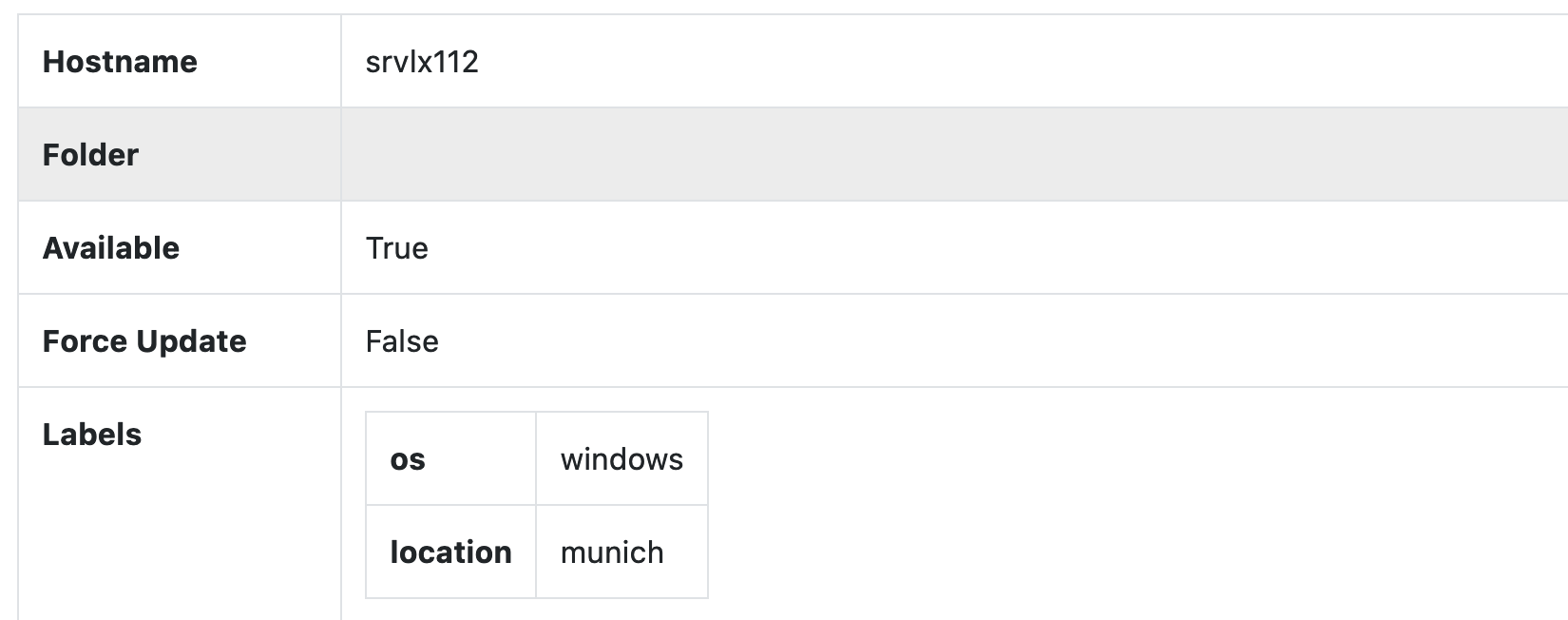
Import the attributes you want to use as group names. In this example, the hosts have os and location attributes.
Step 2: Create the Group Rule
Go to: Modules → Checkmk → Manage Host-/Contact-/Service-Groups
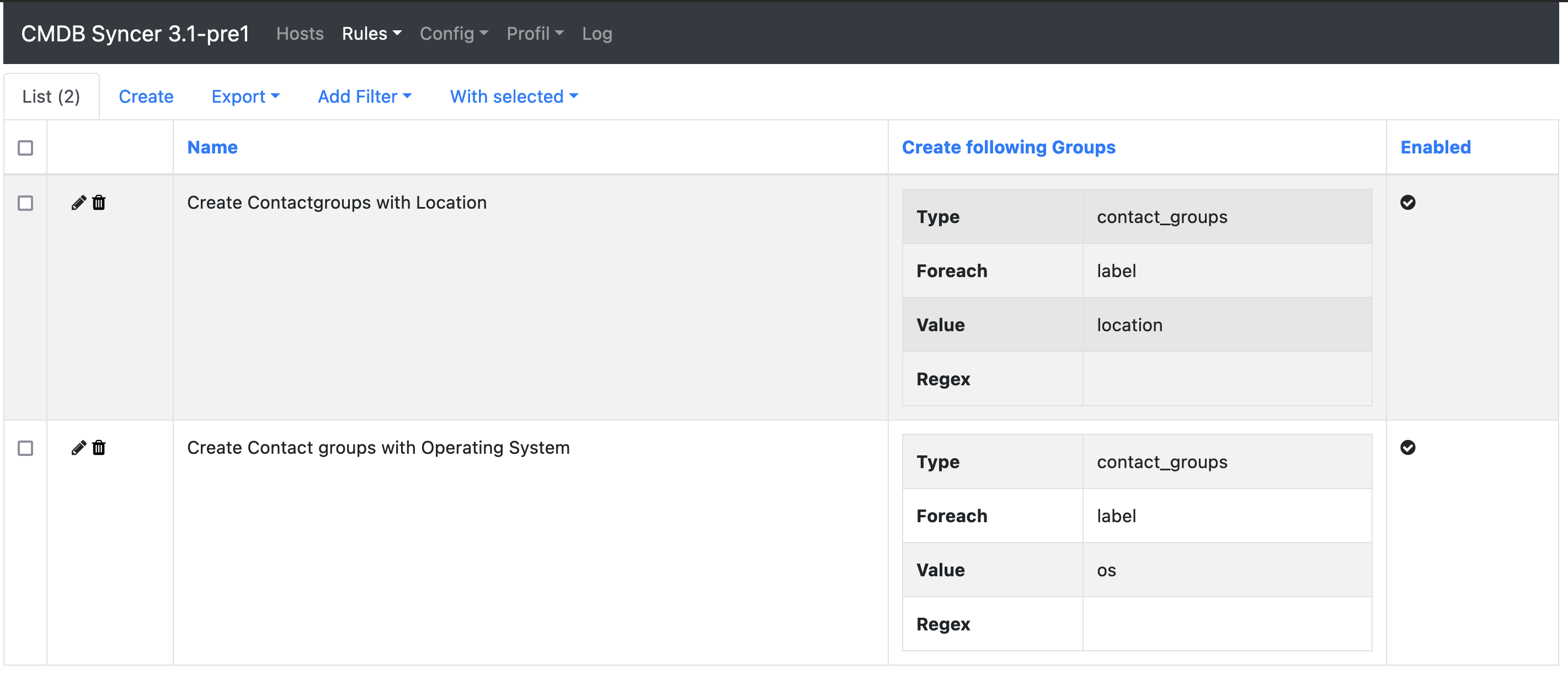
Create a rule for the location attribute:
- Group Name: Contact Groups
- Foreach Type: Foreach Attribute
- Foreach:
location
Optionally, use Rewrite to control the group ID and title:
- Rewrite:
cg_{{name|lower}} - Rewrite Title:
{{name|capitalize}}
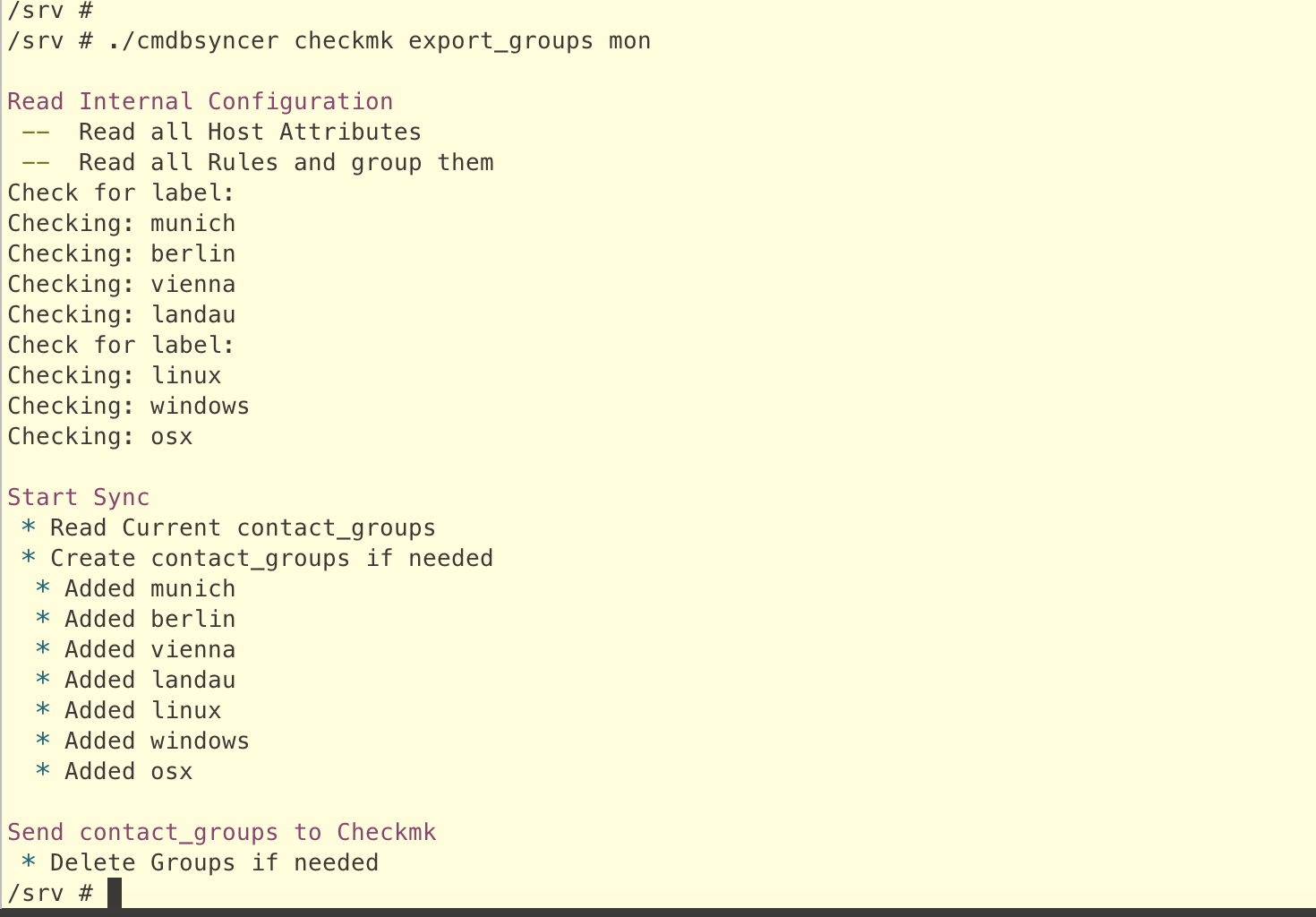
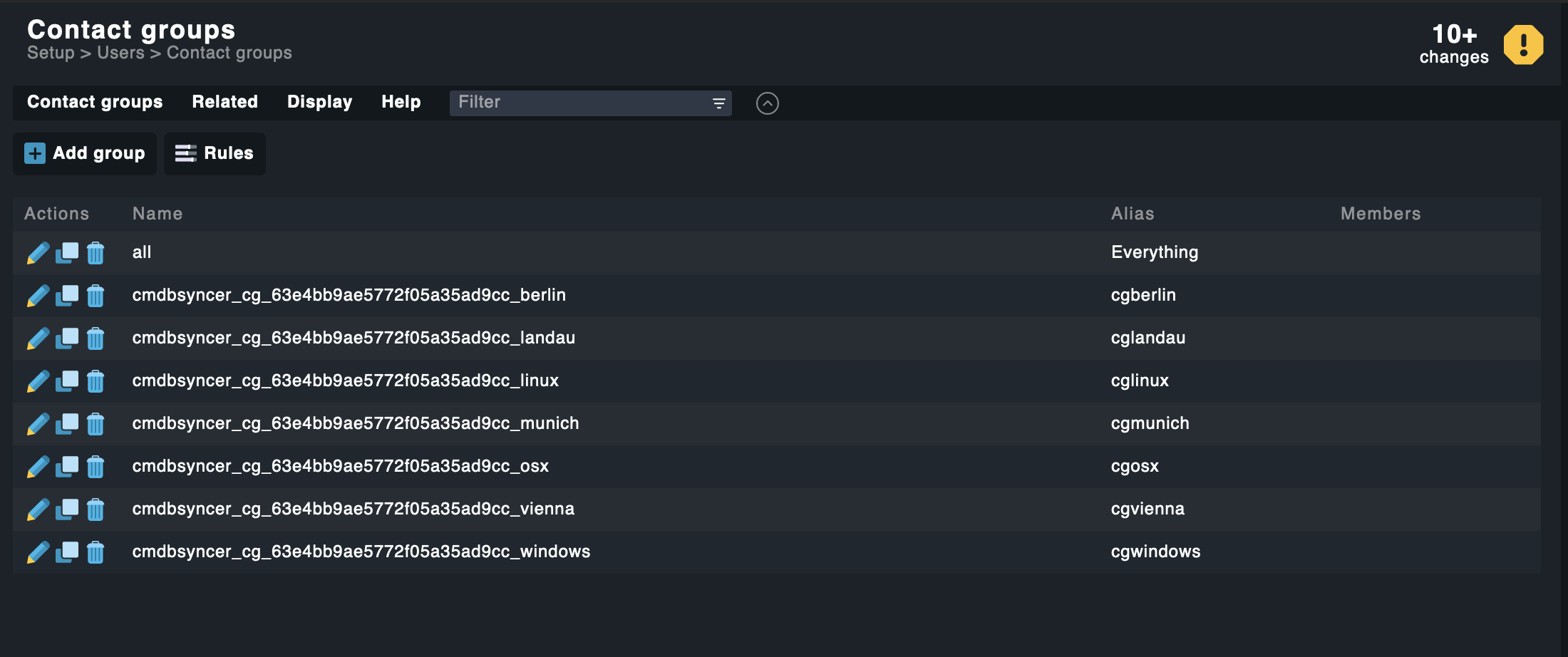
After exporting, the groups appear in Checkmk:
Tip
If your values follow a pattern like contact_1, contact_2, use contact_* as the Foreach value to match all values starting with that string.
Step 3: Find the Ruleset Parameters
To create the assignment rule, you need the Checkmk ruleset ID and value format.
Navigate to the rule in Checkmk to find the ruleset name:
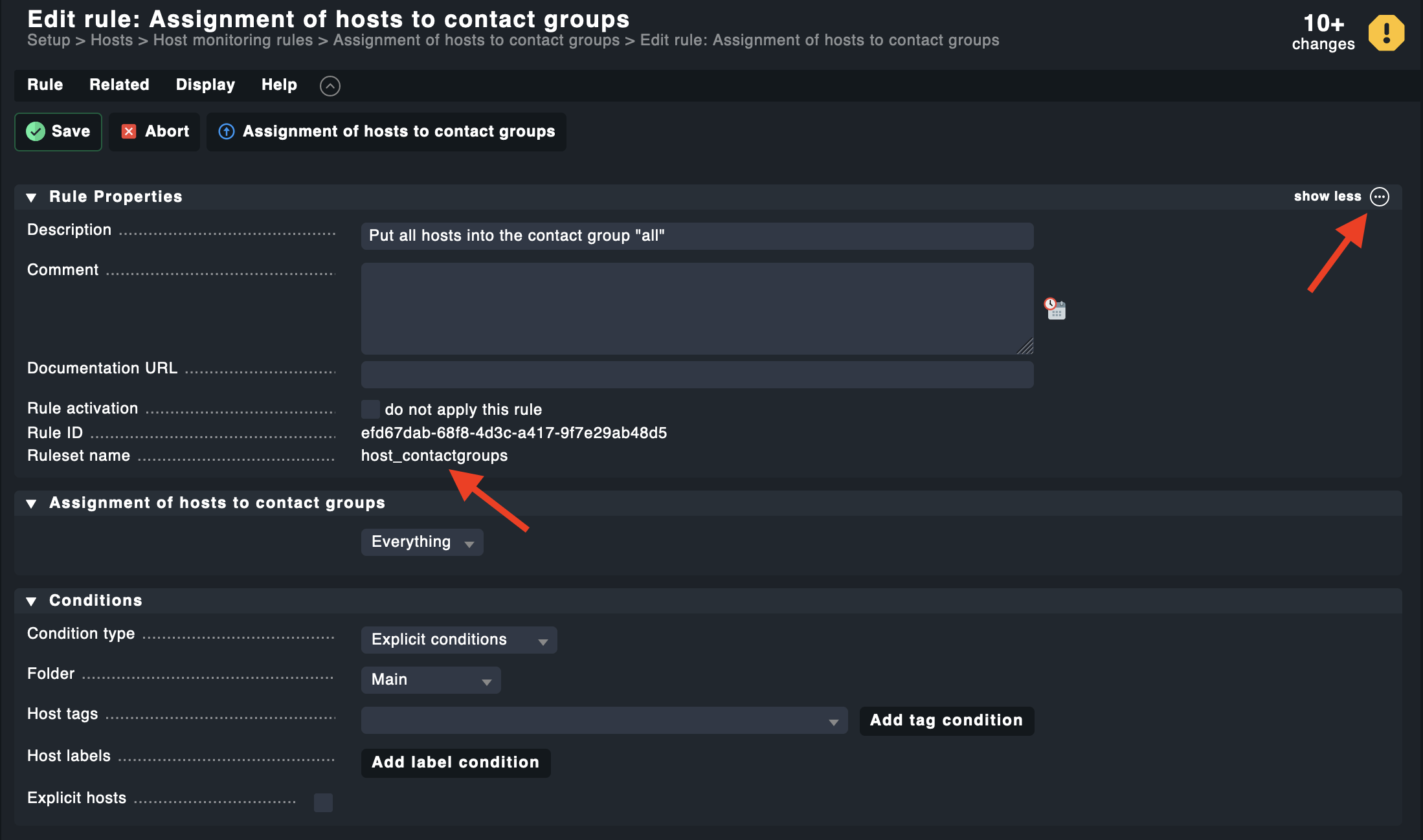
Then use the Checkmk API to get the value format. Open the API documentation and look up an existing rule of that type:
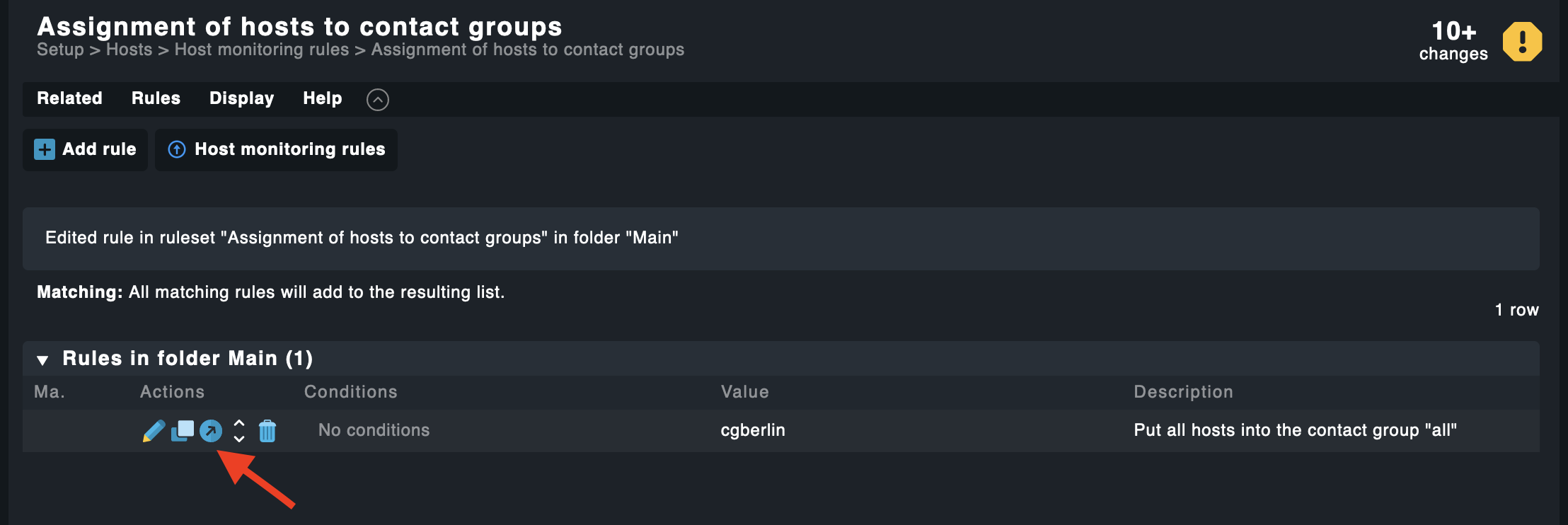
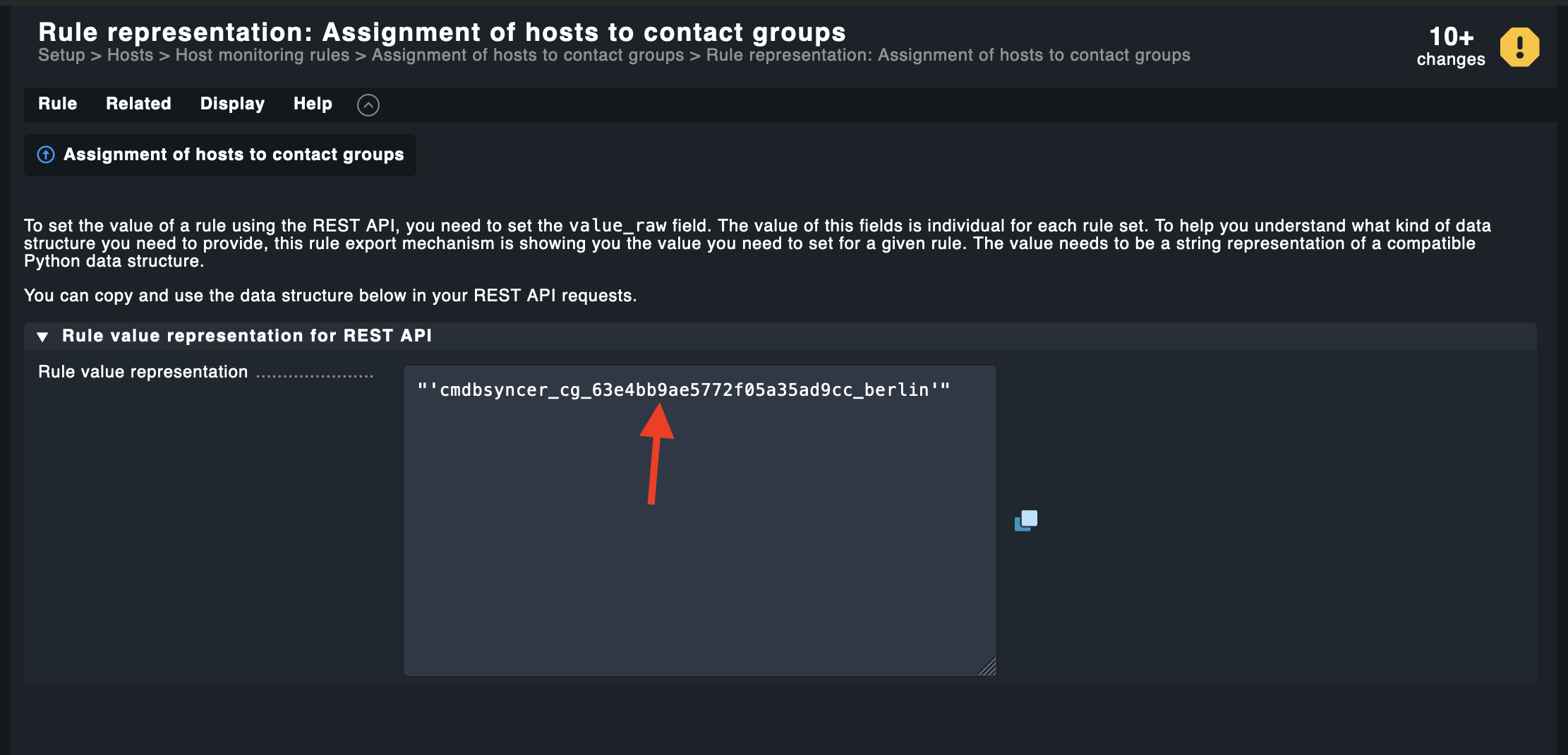
Step 4: Create the Assignment Rule
Go to: Modules → Checkmk → Manage Checkmk Setup Rules
Create a rule that assigns hosts to the contact group. Use {{ location }} to reference the host attribute as the condition label value:
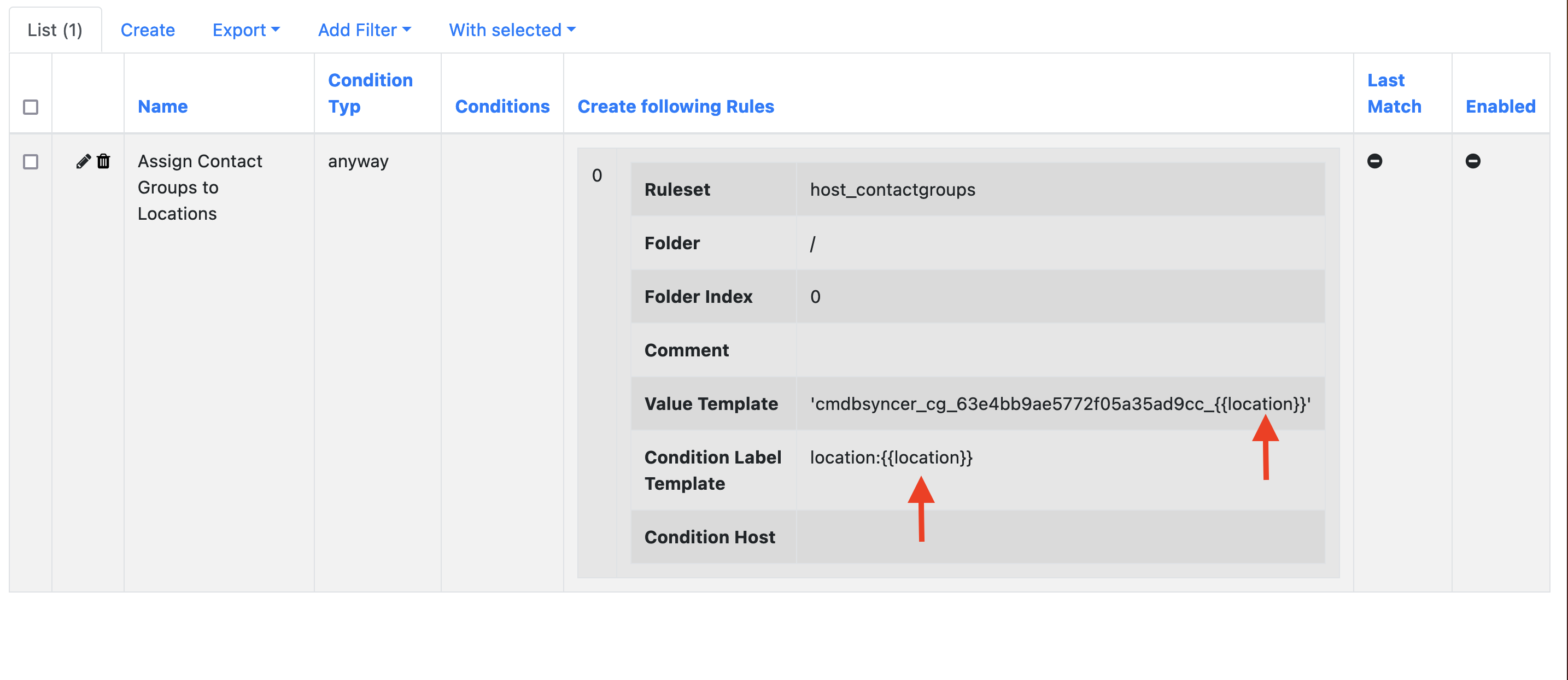
Repeat for the os attribute.
Step 5: Export and Verify
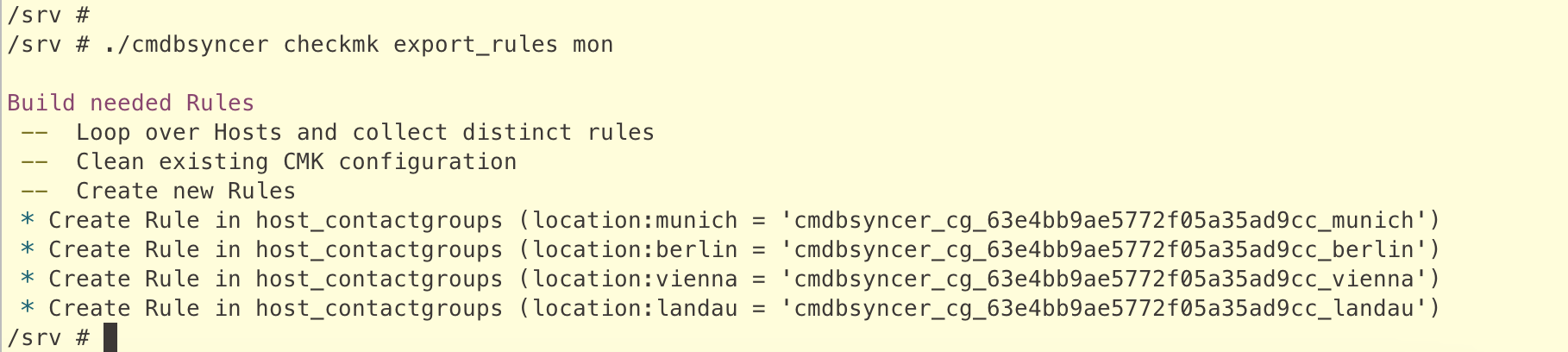
Run the export and check the result in Checkmk:
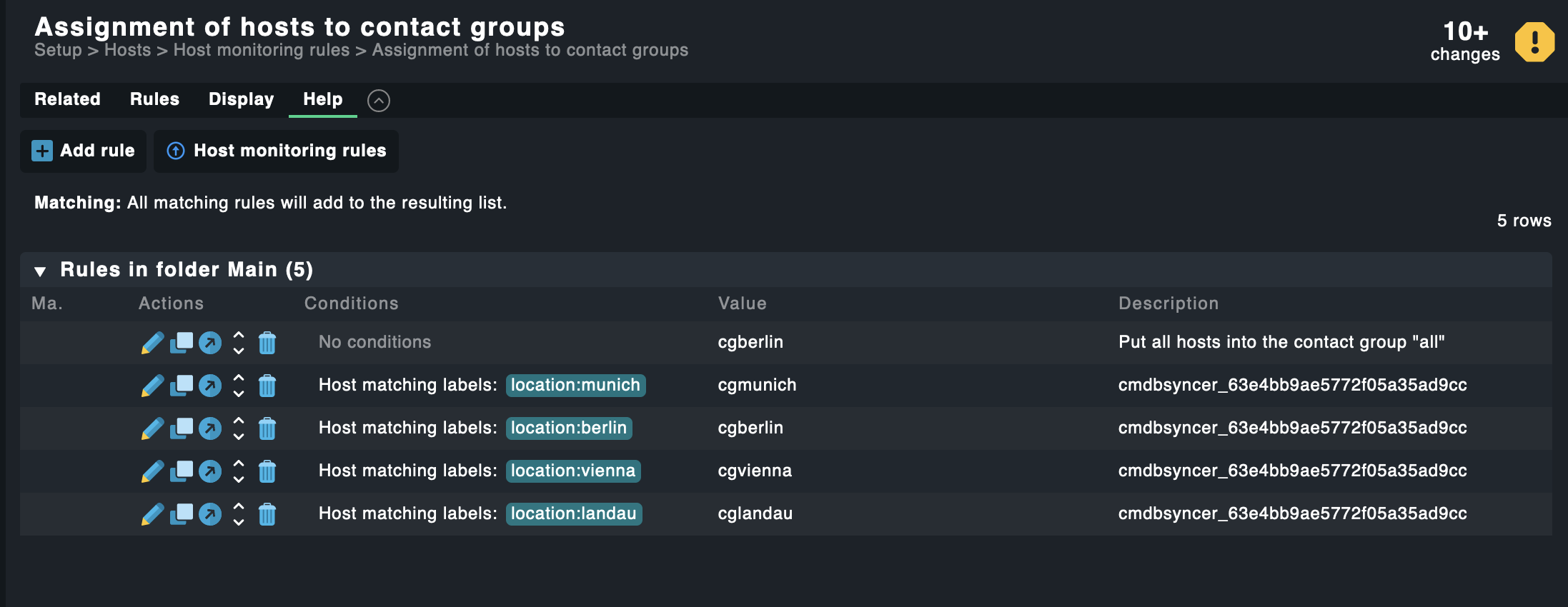
Activate the changes in Checkmk — done.