DCIM Interfaces
The Syncer can create Interfaces in Netbox. This can be set in Modules -> Netbox -> DCIM Interfaces.
Importing Interfaces from Netbox
Analogous to the device and VM import, the Syncer can also import interfaces back from Netbox:
cmdbsyncer netbox import_dcim_interfaces <account>   # interfaces of devices
cmdbsyncer netbox import_virt_interfaces <account>   # interfaces of virtual machines
By default each host's Netbox interfaces — including their assigned IPv4 and
IPv6 addresses — are stored on the matching host's inventory (the host the
interface belongs to). The import respects the account's import_filter and
rewrite_hostname settings.
If you want the interfaces to become first-class objects you can export again,
set the account option import_as_hosts to true. Every
interface is then imported as its own host (named parentdevice/interfacename)
with the interface fields as labels, instead of being stored on the parent
host's inventory.
As in other Syncer Functions, you can match your Host Attributes to Netbox Attributes. Here you will find some Examples.
The "ID of Assigned Device" for example, can be found in an Attribute like "accountname_device_id". This attribute is automatically set when you used the device export of the Syncer. But the name depends on the Account Name you used. The part accountname is replaced by this Accounts Name.
An example value, if the Account's name is netbox, would be {{netbox_device_id}} The Brackets are the Jinja Syntax for Variables.
Like the Device Export, also this Interface Export will automatically add information to the Host inside the Syncer. This then can be used to Export IP Addresses.
Full Example
Hosts Attributes
In the Example, the Host as the Attribute mainip4transport with the following Value:
{'hostnames': [], 'ipAddress': '172.30.50.121', 'subnetMask': '255.255.255.0', 'networkInterface': {'physicalAddress': '00:50:56:96:25:0c', 'index': 2, 'extendedDescription': 'ens192', 'operationalStatus': 'Up', 'speed': 10000000000}, 'network': {'name': None, 'nameManuallyConfigured': None, 'networkBaseAddress': '172.30.50.0', 'subnetMask': '255.255.255.0'}}
And Some others which you see here:

Accessing Host Attributes
The Following Functions can be used, to Access these Attributes:
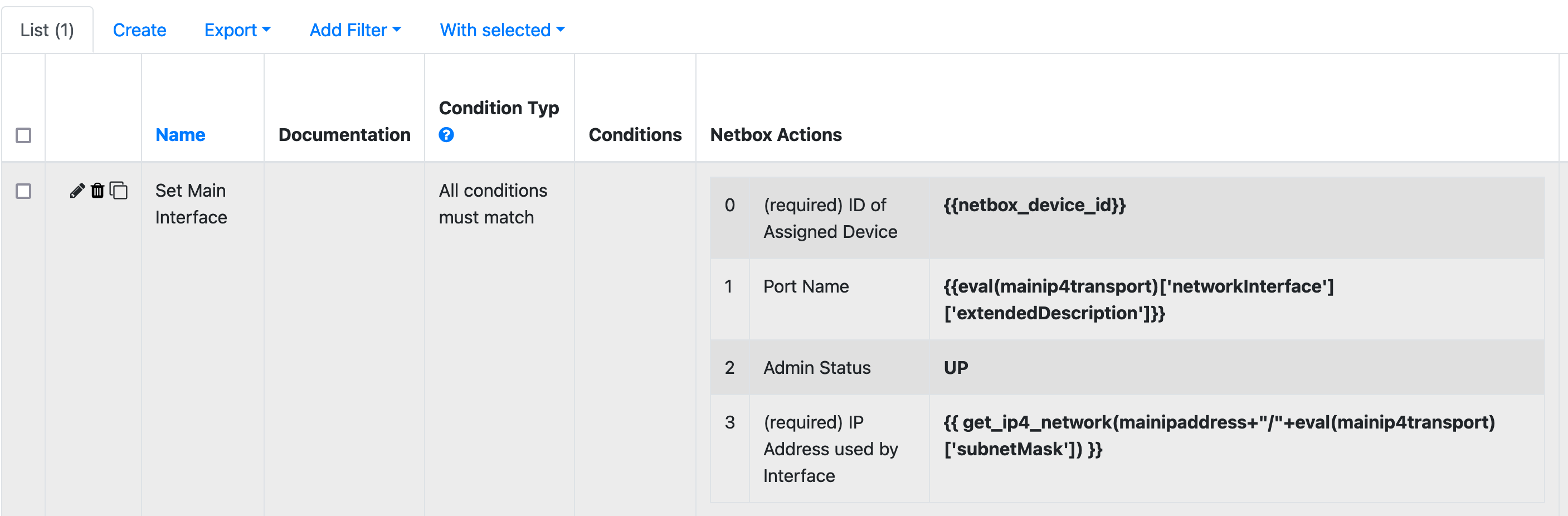
To get the Examples Description:
{{mainip4transport['networkInterface']['extendedDescription']}}
Accessing IP and Convert Subnet.
Our Example contains a IP Address and a Subnet Mask. But that does not meat Netbox Requirements for the IP Address. We need the form 127.30.50.121/32. Luckly the Syncer has a helper to convert that:
get_ip4_network()
We just pass the IP Address and the Subnet Mask to it.
In the Example, the fields mainipaddress and mainip4transport to create a String (+) to create 127.30.50.21/255.255.255.0 and from there it's passed to the Helper:
{{ get_ip_interface(mainipaddress+"/"+mainip4transport['subnetMask']) }}
Use List Variables
This Rule can also use List Mode. Here are some Examples for fields. The Information of course need to Exist on the Syncer Objects.
For Name:
{{HOSTNAME }}
{% if LIST_VAR['extendedDescription'] %}
 {{LIST_VAR['extendedDescription']}}
{%else%}
 {{LIST_VAR['description']}}
{% endif %}
Interfaces Address
{% for ip in LIST_VAR['ip4Transports'] %}
{% set ip_address = ip['ipAddress'] %}
{% set subnet_mask = ip['subnetMask'] %}
{% if not subnet_mask%}
{% set subnet_mask = "255.255.255.0" %}
{% endif %}
{{ get_ip_interface(ip_address+'/'+subnet_mask) }},
{% endfor %}
ip_address, and the subnet to subnet_mask. And then there is a Fallback if subnet_mask is empty.